
How to Collect Wedding Videos from Guests (Without Losing Quality)
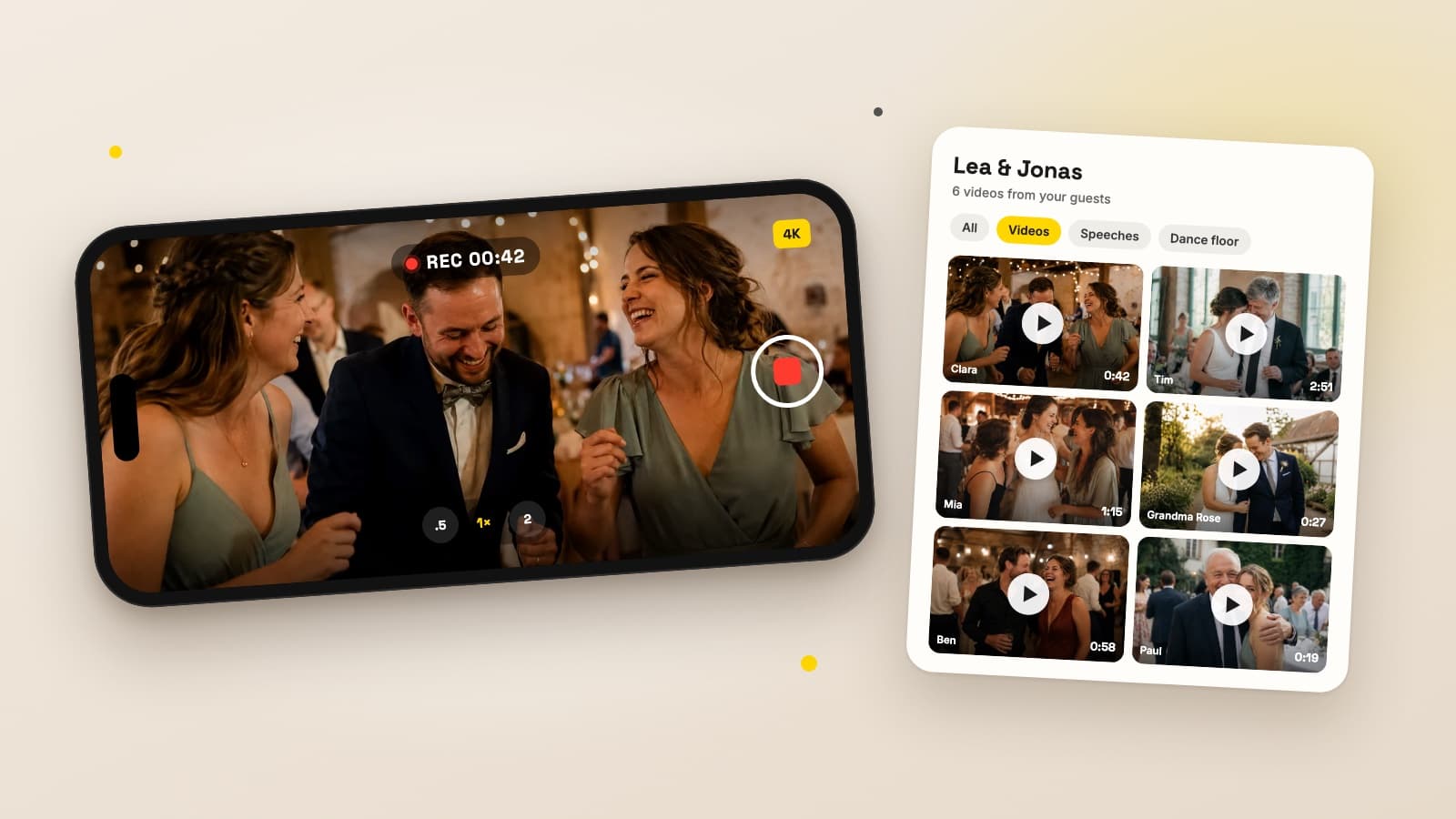
On the night after your wedding there are two kinds of video: the ones from your videographer, which arrive in a few weeks, and the ones from your guests, which are already sitting on eighty phones. The best man's speech filmed from the third row, the moment the dance floor fills up, your grandmother dancing for the first time in years. Those are the clips that get lost most easily, and when they do arrive, it is often as a blurry copy from the group chat.
This guide covers the ways to collect wedding videos from guests, where quality gets lost along the way, which moments are worth filming and what to do with the clips after the party.
Why guest videos often arrive in poor quality
A current smartphone films in a quality that only expensive cameras managed a few years ago. The problem is not the recording, it is the way the file travels to you. Messaging apps such as WhatsApp usually shrink videos when they are sent, so they transfer quickly and use little data. On a small phone screen you barely notice. On a TV, in an edited film or on a bigger screen a few years from now, you do.
Then there is volume. Videos are large files. A guest with ten clips from the night rarely sends them all; they pick two or three, often not the ones you would have chosen. And every extra step in sharing means fewer guests take part.
Four ways to collect wedding videos from guests
Messaging apps and group chats
The obvious route. Everyone has WhatsApp, everyone knows how to send a video. For a quick look the next morning that is fine. As the archive of your wedding it is not, because videos usually arrive shrunk. Some messaging apps let you send a video as a document to keep the quality, but hardly any guest does that on their own.
Shared cloud folders
A shared Google Drive or Dropbox folder accepts the original files. The catch is on the guests' side: they often need an account or the right app, have to find the link again and upload large files over mobile data. Every one of those steps costs you participation.
AirDrop and Quick Share
Phone to phone, AirDrop on iPhone and Quick Share on Android transfer files without shrinking them. That only works when guest and recipient are standing next to each other, and usually only within the same ecosystem, iPhone to iPhone or Android to Android. For a whole wedding party it is not a system.
A shared gallery via QR code
A QR code sits on the tables, guests scan it and upload videos and photos straight from the browser. The files land in one shared gallery, as originals rather than shrunken copies. Guests can upload during the party or in the days after, once they are on Wi-Fi.
| Method | Quality | Effort for guests |
|---|---|---|
| Messaging apps | usually shrunk | low |
| Cloud folder | original | medium to high, often with an account |
| AirDrop, Quick Share | original | low, but only in person |
| Gallery via QR code | original | low, no app |
Which moments your guests should film
Guests love filming the dance floor at midnight and forget everything else. A short list on the table card or a quick announcement makes sure the key moments exist from several angles:
- Guests arriving and the drinks reception
- Your entrance, or the moment you step outside as a married couple
- The speeches, ideally in full and with sound
- Cutting the cake
- The first dance, from different corners of the room
- The first minutes as the dance floor fills up
- Short video messages for you, for example at the end of the night
For the ceremony itself, the rule is simple: only film if you explicitly want it. Some couples prefer an unplugged ceremony, and registry offices or churches sometimes have their own rules. Say clearly what is allowed beforehand. If you want to turn filming into a game, our 50 wedding photo scavenger hunt ideas work for video too.
Tips for better clips
Landscape is the better choice for speeches, the first dance and anything that will end up on a TV or in an edit. Portrait is fine for story-style moments, as long as nobody switches orientation mid-clip.
For speeches, sound matters more than picture. Whoever sits close to the speaker should film; whoever stands in the back row should not. Hold the phone with both hands, elbows tucked in. Instead of zooming digitally, take a few steps closer.
Short clips are usually worth more than long ones. Thirty seconds of the first dance from a good angle are easier to use than ten minutes of shaky footage.
Collecting wedding videos with Snapveil
Snapveil is our own product, so here is that up front. It is exactly the QR code gallery from the comparison above. You create an event, print the QR code on table cards or a sign, and guests upload photos and videos from the browser, with no app and no account. Videos appear in the gallery as a tile with a preview image and their length, and they play there once the upload has been checked and processed.
The original is stored unchanged, exactly as it was uploaded. You can download single videos in their original quality or export all of the event's videos at once. Our page on QR code photo sharing shows how the same works for photos.
The limits, openly and in full:
- Videos start with Pro. The free plan covers 250 photos and no videos.
- Pro is a one-time €29.90 per event and takes up to 10 videos of up to 3 minutes each, 15 minutes and 5 GB in total, with a maximum of 2 GB per file.
- Ultra is a one-time €59.90 and takes up to 30 videos of up to 10 minutes each, 60 minutes and 20 GB in total, with a maximum of 5 GB per file. Ultra's AI features apply to photos; videos are not analysed automatically.
- The live photo wall shows photos. Videos stay in the gallery.
To be honest about what that means: if you want every clip from every guest, Pro's ten videos fill up quickly. For the highlights from several angles it is usually enough; for a big party with lots of guests filming, Ultra is the better fit. Photos are unlimited on Pro and Ultra (fair use), so the same problem does not apply there.
After the wedding: from a pile of clips to a film
Wait a few days before downloading everything. Some guests only upload later, for example once they are home on Wi-Fi. Then export the videos in one go and sort them by the order of the day.
There are two ways to an edited film. With an editing app on your phone or laptop, you cut a short film from the best clips yourself. Or you hand the original files to your videographer, if they can work guest footage into your wedding film. Either way the originals are what counts, because no edit turns a shrunken chat copy back into a sharp picture.
Keep the storage period in mind as well. Pro stores your event for 12 months, Ultra for 24 months, and you can extend it at any time from €14.90 for another 12 months. Download the originals in good time anyway and keep a second copy somewhere safe. For gathering your guests' photos as completely as their videos, see our guide on how to collect wedding photos from guests without an app.
Frequently Asked Questions
Related Articles
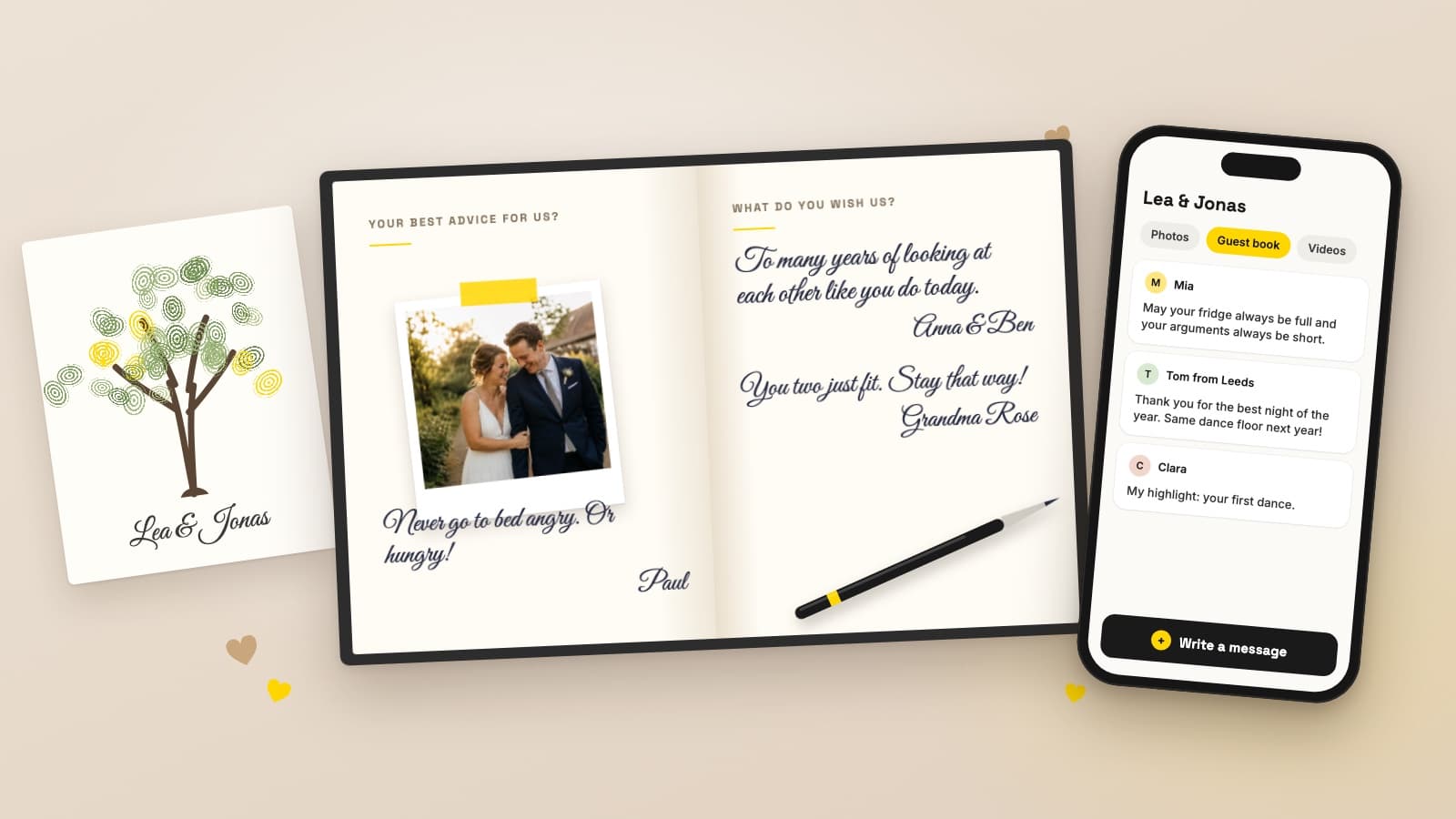
Wedding Guest Book Ideas: 30 Creative Alternatives Your Guests Will Use
30 wedding guest book ideas: classic books with a twist, keepsakes to hang, interactive stations, digital options and prompts for your guests.
Read article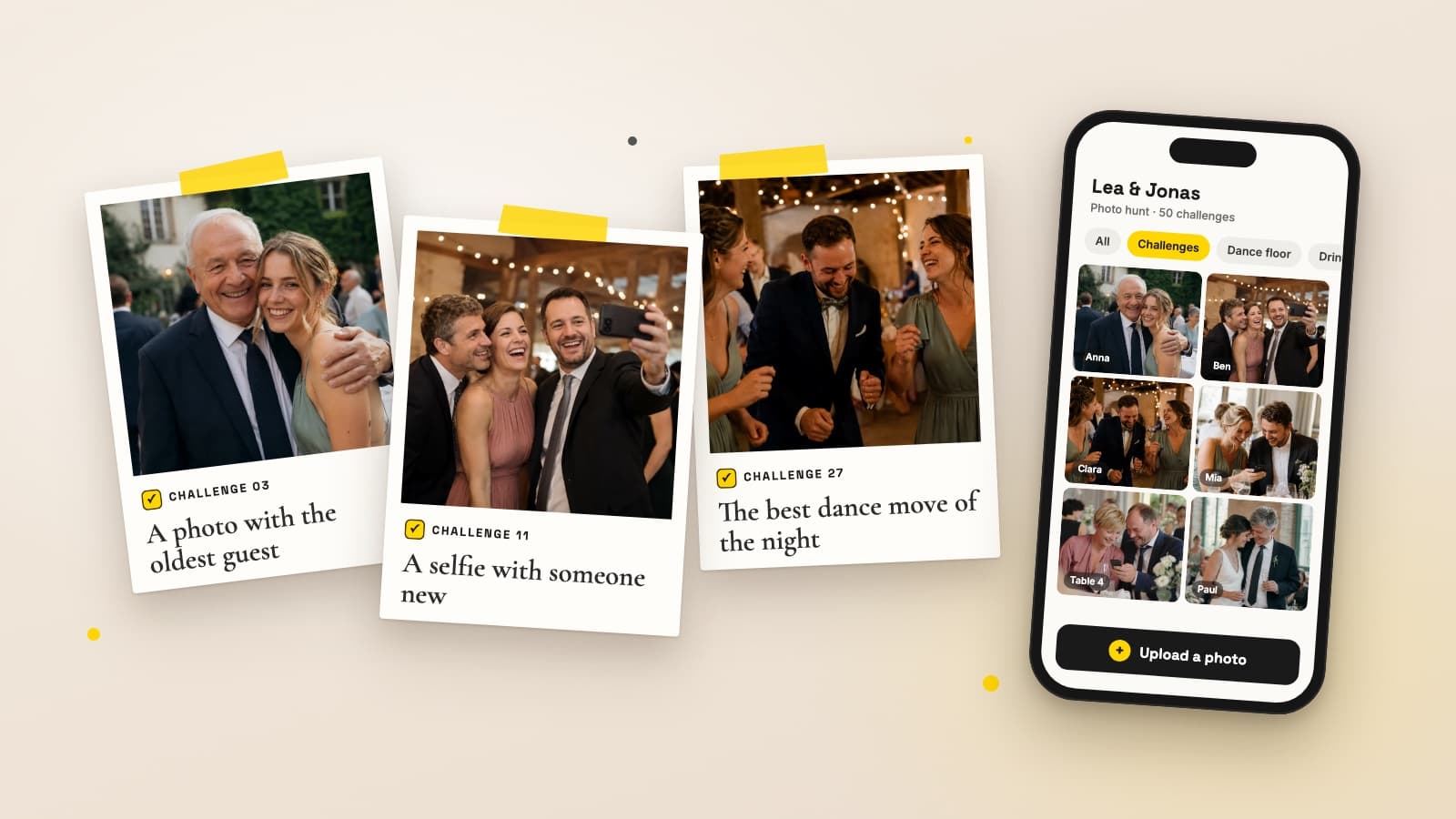
Wedding Photo Scavenger Hunt: 50 Photo Challenge Ideas for Your Guests
50 wedding photo scavenger hunt ideas, sorted by the flow of the day, plus how to run the game so every guest photo ends up with you.
Read article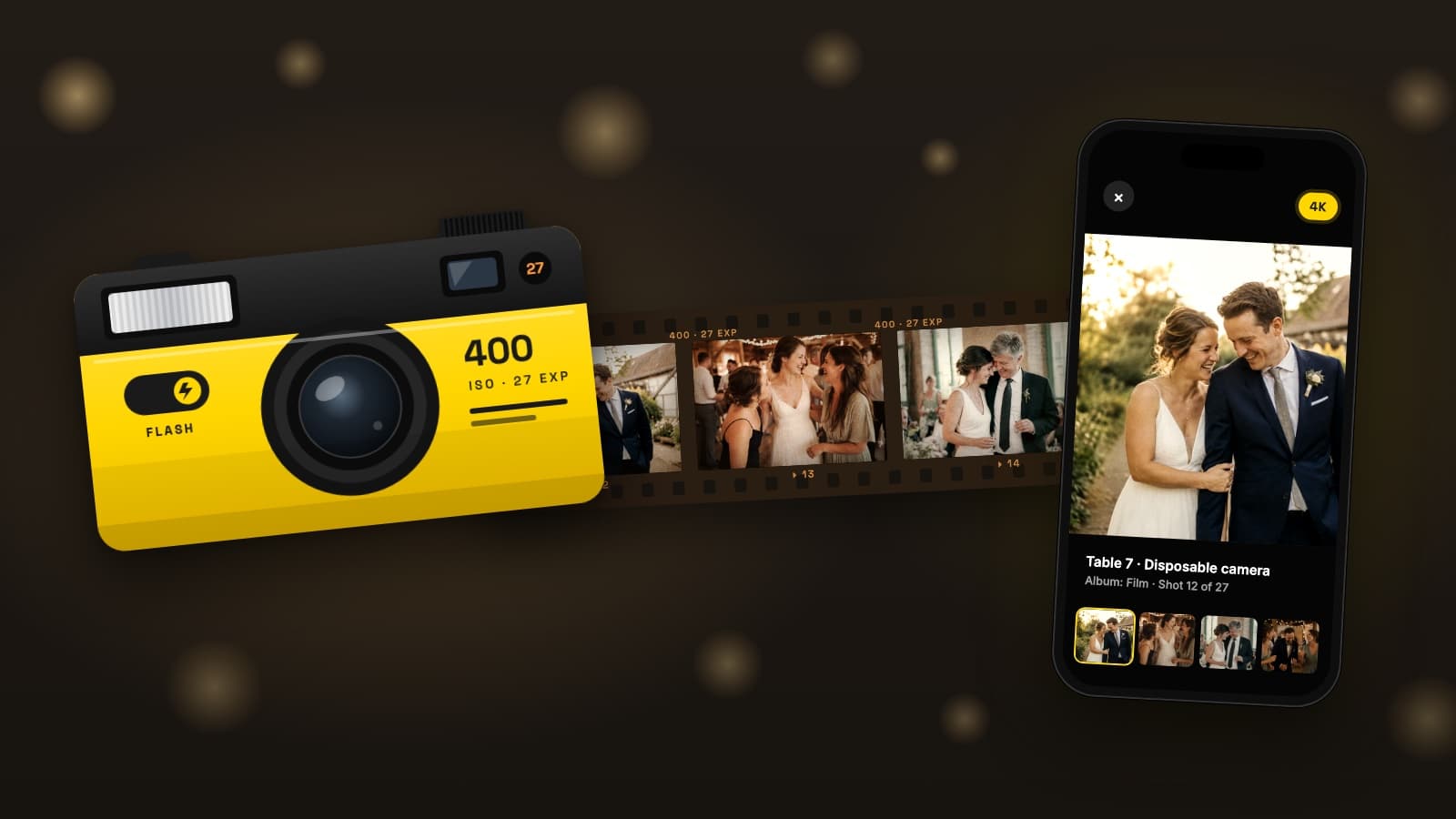
Disposable Cameras at Weddings: Cost, Tips and the Digital Alternative
What disposable cameras really deliver at a wedding, what they cost, how to get better shots and how to combine film scans with a QR gallery.
Read article