
Do All Devices Support QR Code Photo Uploads?
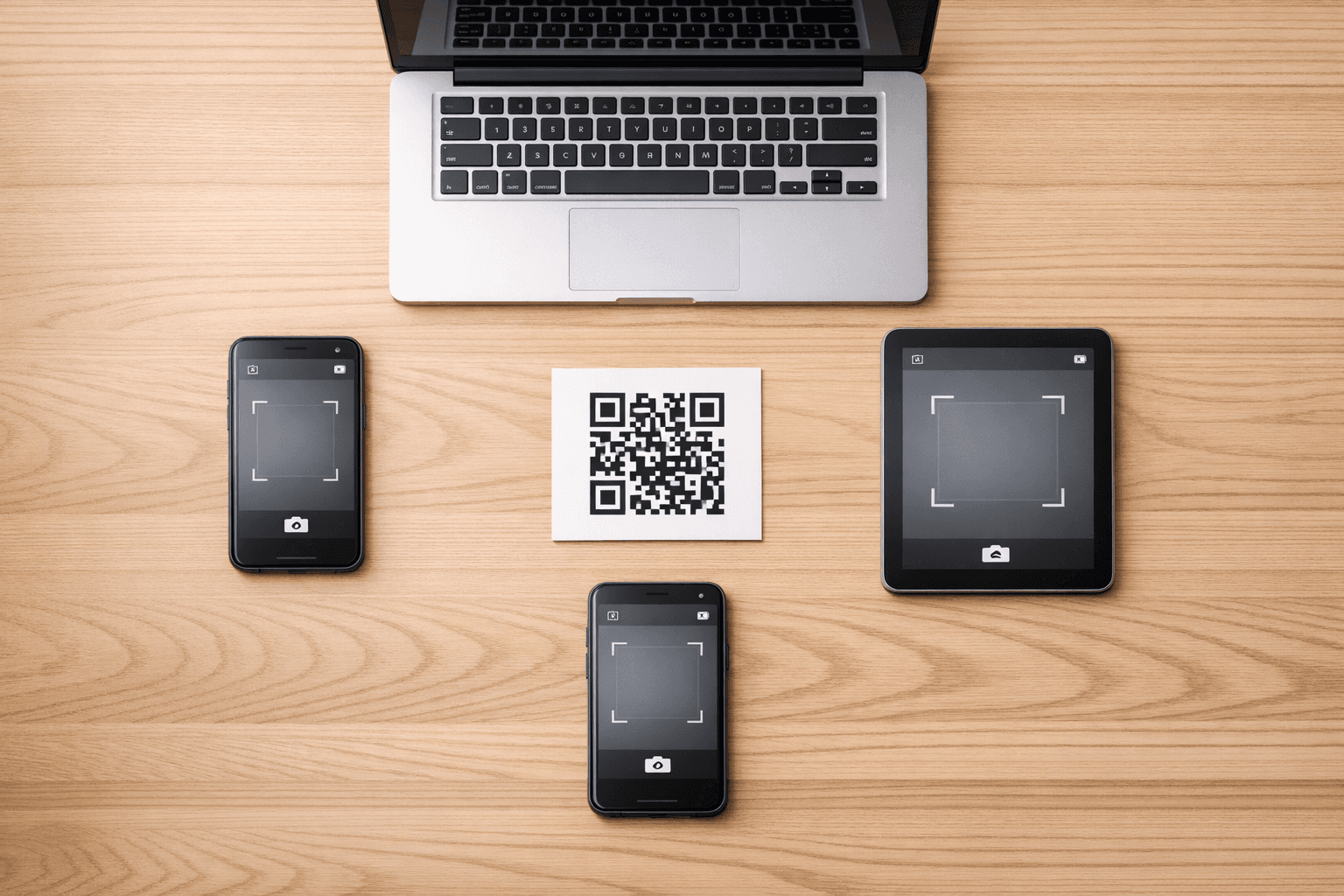
QR codes make photo sharing at events simple — just scan and upload through your phone’s browser. Over 95% of smartphones support QR scanning, but not all devices handle it equally.
Here’s what you need to know:
- iOS (iOS 11+): Built-in QR scanning via the Camera app. Live Text (iOS 15+) allows scanning from saved images.
- Android (Android 9+): Most devices support QR scanning through the Camera app. Google Lens offers extra flexibility.
- Older Devices: May need third-party apps or web-based scanners.
Browser compatibility matters too. Modern browsers (Safari, Chrome, Firefox) support photo uploads, but in-app browsers (Instagram, Facebook, etc.) can cause problems.
Tips for success:
- Test QR codes on multiple devices and browsers before your event.
- Ensure good lighting, clean camera lenses, and stable internet.
- Provide a backup URL for older phones.
Pre-event preparation ensures smooth QR code uploads for all guests. For the full walkthrough, read How to collect wedding photos from guests without an app.
How To Create a QR Code To Share Wedding Photos (Step By Step)
Device Compatibility for QR Code Photo Uploads
QR Code Device Compatibility Comparison: iOS vs Android vs Older Devices
Most modern smartphones have built-in QR scanning. Here’s how the major platforms compare:
iOS Devices: Compatibility and Features
Apple introduced native QR scanning with iOS 11 (2017). Point your Camera app at a QR code and tap the notification. Since iOS 15, Live Text lets you scan QR codes from photos and screenshots.
Pro Tip: Disable HDR in difficult lighting and keep your lens clean.
Android Devices: Compatibility and Features
Most Android devices on Android 9+ support QR scanning via the Camera app. Android 13 added a dedicated “Scan QR Code” Quick Settings tile. Google Lens works excellently for saved images and damaged codes.
Scanning Tip: Hold the phone 6–10 inches away and tap to focus.
Devices Without Built-in Support
Older phones can use web-based QR scanners or third-party apps (use cautiously). Feature phones usually need a backup short URL.
| Feature | iOS Devices (Modern) | Android Devices (Modern) | Older/Basic Devices |
|---|---|---|---|
| Native Scanning | iOS 11+ (Camera) | Android 9+ (Camera) | Not available |
| Gallery Scanning | Photos + Live Text | Google Lens / Google Photos | Web scanner |
| Quick Access | Control Center | Quick Settings (Android 13+) | Third-party app |
The devices that actually cause trouble
In practice, failures cluster on a short list, and none of them are about the phone being old:
- A dirty lens. The single most common cause. A phone that has been in a pocket all evening will not focus on a small printed square.
- In-app browsers. Instagram, Facebook and LinkedIn open links in their own browser, which often has restricted access to the photo library. The upload button appears and then does nothing.
- Corporate phones. Managed devices sometimes block camera access or the file picker outright. A guest on a work phone may simply be unable to take part.
- Very low battery. Below about 20 % both iOS and Android throttle the camera, and scanning slows to the point where people give up.
None of these are fixed by choosing a different platform. They are fixed by a short backup URL printed under the code.
Browser Compatibility Across Devices
After scanning, the browser handles the photo upload. Most modern browsers support HTML5 Media Capture
Important notes:
- In-app browsers (Instagram, Facebook, etc.) often have restricted camera access → recommend using the native Camera app.
- Safari shows the full URL when scanning; other browsers may show a generic prompt.
Best practice: Test the upload page in Safari (iOS), Chrome (Android), and Chrome (iOS).
Testing QR Code Uploads Before Your Event
Setting Up a Test Environment
- Generate the QR code with the real destination URL.
- Print it at final size (min. 2 inches for distance scanning).
- Test on iPhone, Android (Samsung/Pixel), tablet, and one older device.
- Test in different lighting conditions and multiple browsers.
- Verify camera permissions and upload flow.
Common Issues & Fixes
Failed QR Code Scanning
- Clean the lens
- Ensure 6–12 inch distance
- Good lighting, no glare
- Dark modules on light background + quiet zone
Upload Failures
- Check HTTPS + stable internet
- Allow camera permissions in browser settings
- Close other apps using the camera
- Disable VPN/ad-blockers temporarily
What to do about the ones that fail anyway
Assume two or three guests will not manage it, and plan for them rather than hoping.
Print a short URL under every code. Something a person can type: example.com/abc. This single line rescues in-app browsers, blocked cameras and older phones at once.
Give one person the job. A groomsman, a colleague, whoever is good with phones. Thirty seconds of help beats any amount of instructional text on a sign.
Offer to take the photos off them directly. For a guest whose phone simply will not cooperate, AirDrop or a cable at the end of the evening still works. It is not elegant, and it gets the photos.
Conclusion
Modern smartphones (over 95% of active devices) support QR code photo uploads very well. With proper testing, good print quality, and a backup URL, you can offer a smooth experience to virtually all guests.
Platforms like Snapveil are optimized for maximum compatibility using standard HTML5 features and server-side improvements. See how QR code photo sharing works in practice.
Frequently Asked Questions
Related Articles
Wedding Guest Book Ideas: 30 Creative Alternatives Your Guests Will Use
30 wedding guest book ideas: classic books with a twist, keepsakes to hang, interactive stations, digital options and prompts for your guests.
Read article
Wedding Photo Scavenger Hunt: 50 Photo Challenge Ideas for Your Guests
50 wedding photo scavenger hunt ideas, sorted by the flow of the day, plus how to run the game so every guest photo ends up with you.
Read article
Disposable Cameras at Weddings: Cost, Tips and the Digital Alternative
What disposable cameras really deliver at a wedding, what they cost, how to get better shots and how to combine film scans with a QR gallery.
Read article